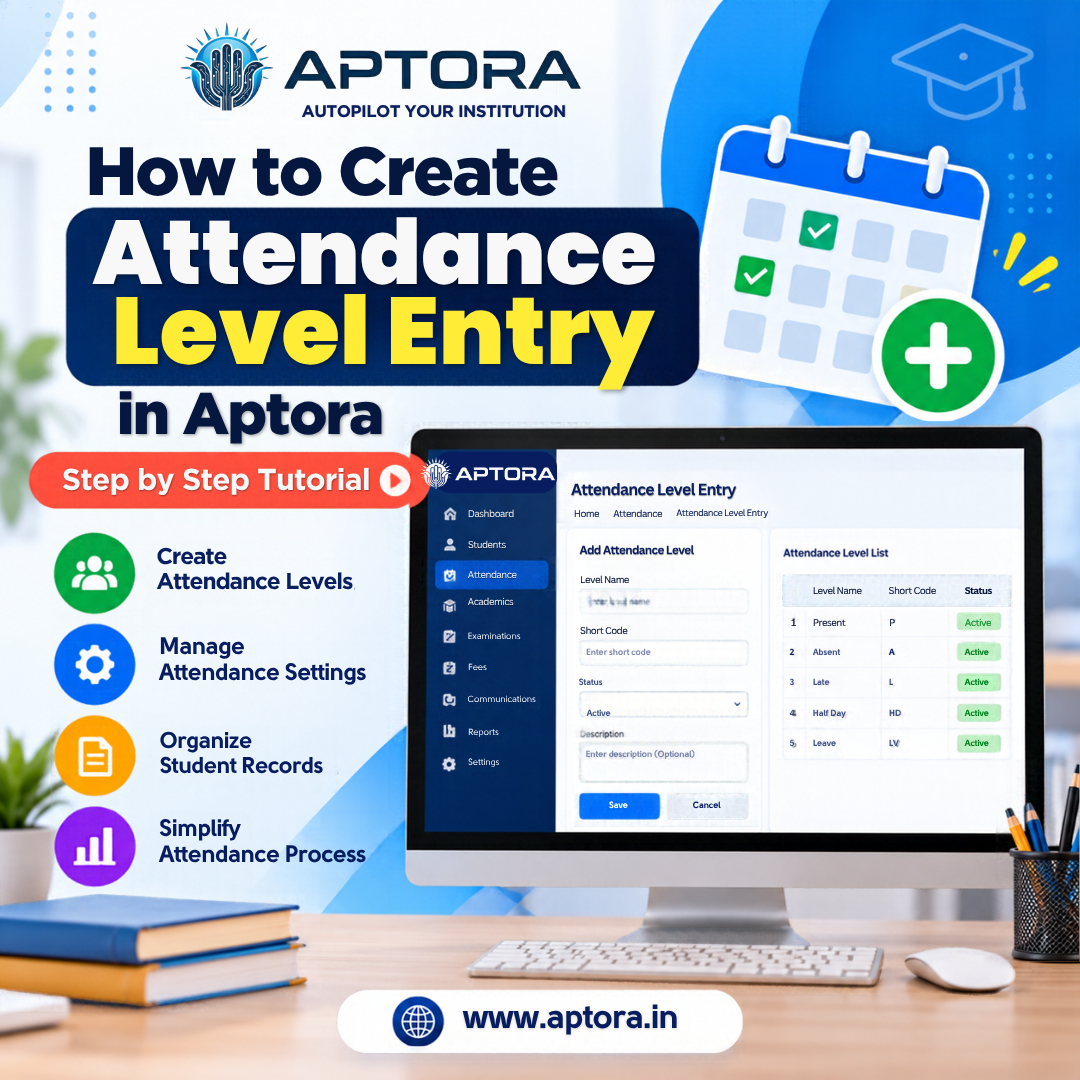
Introduction: Managing student attendance efficiently is an important part of Institution administration. Creating attendance level entries helps schools and colleges organize attendance-related information and maintain accurate student records. Aptora Institution Management...
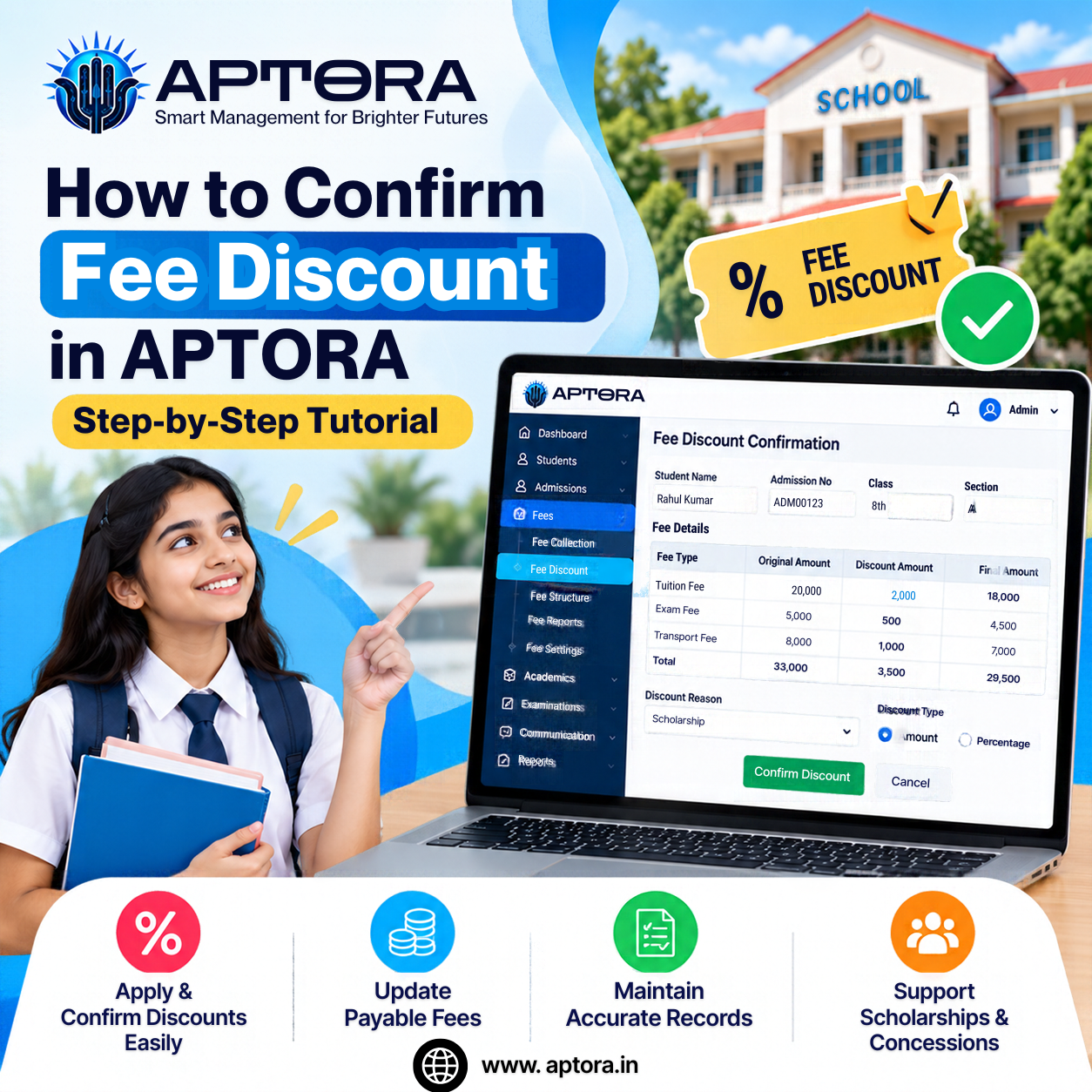
Fee discounts are commonly provided to students based on various institutional policies, scholarships, concessions, or other eligibility criteria. Managing and confirming these discounts accurately is important to maintain correct student fee records. APTORA helps educationa...
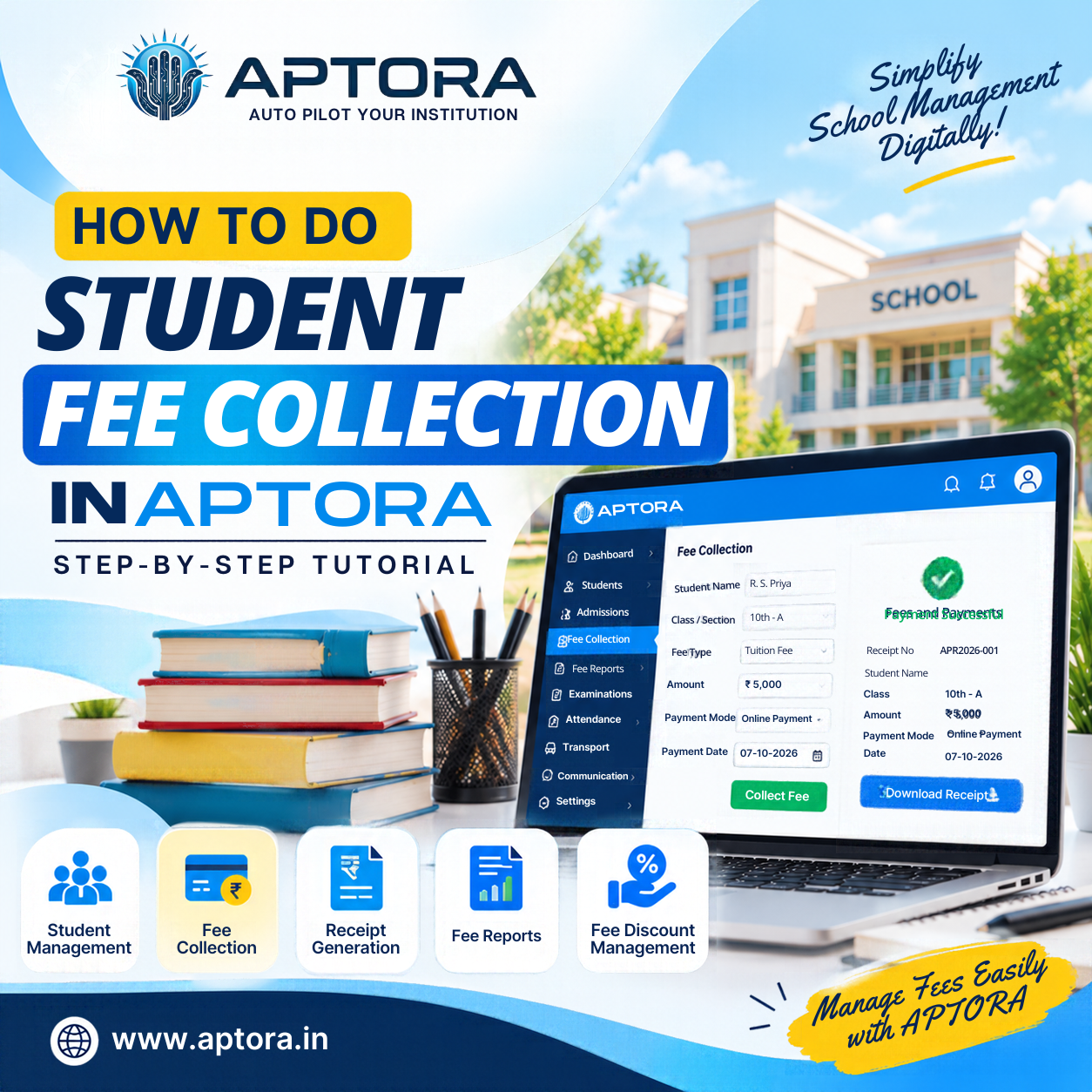
Managing student fees is an important part of every educational institution. Keeping track of collected fees, pending amounts, payment details, and receipts manually can be time-consuming. APTORA simplifies the fee collection process by allowing institutions to manage studen...
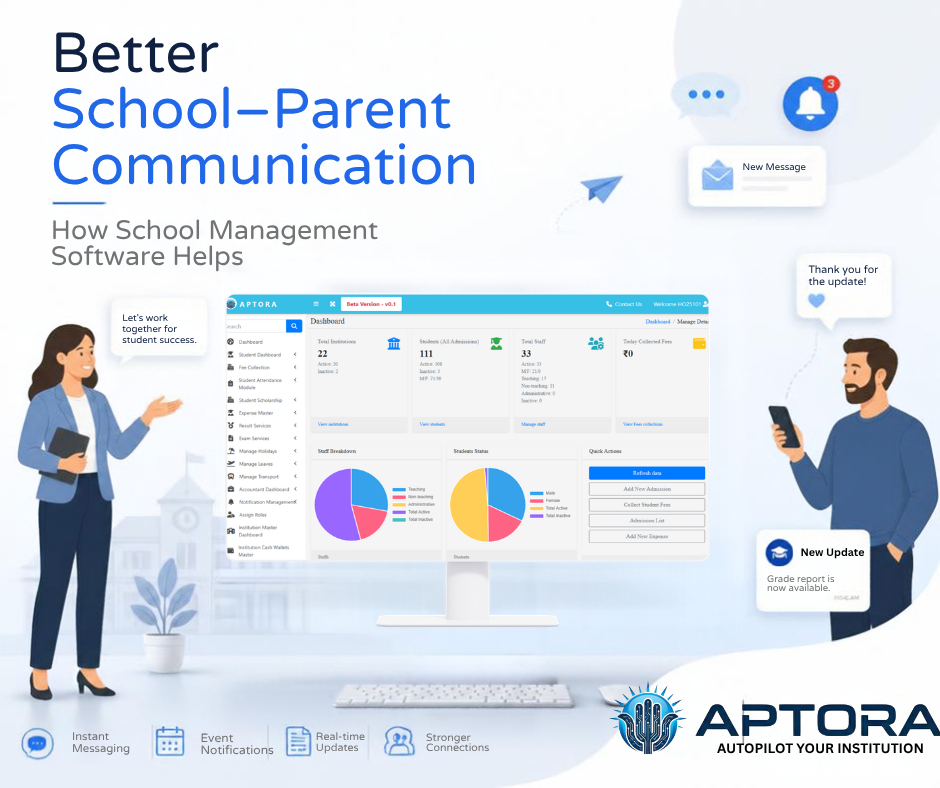
Good communication between a faculty and dad and mom makes a big distinction in a pupil's training. Parents want to understand what is taking place at faculty, whether or not their toddler is attending instructions often, while tests are scheduled, and if there are any essen...
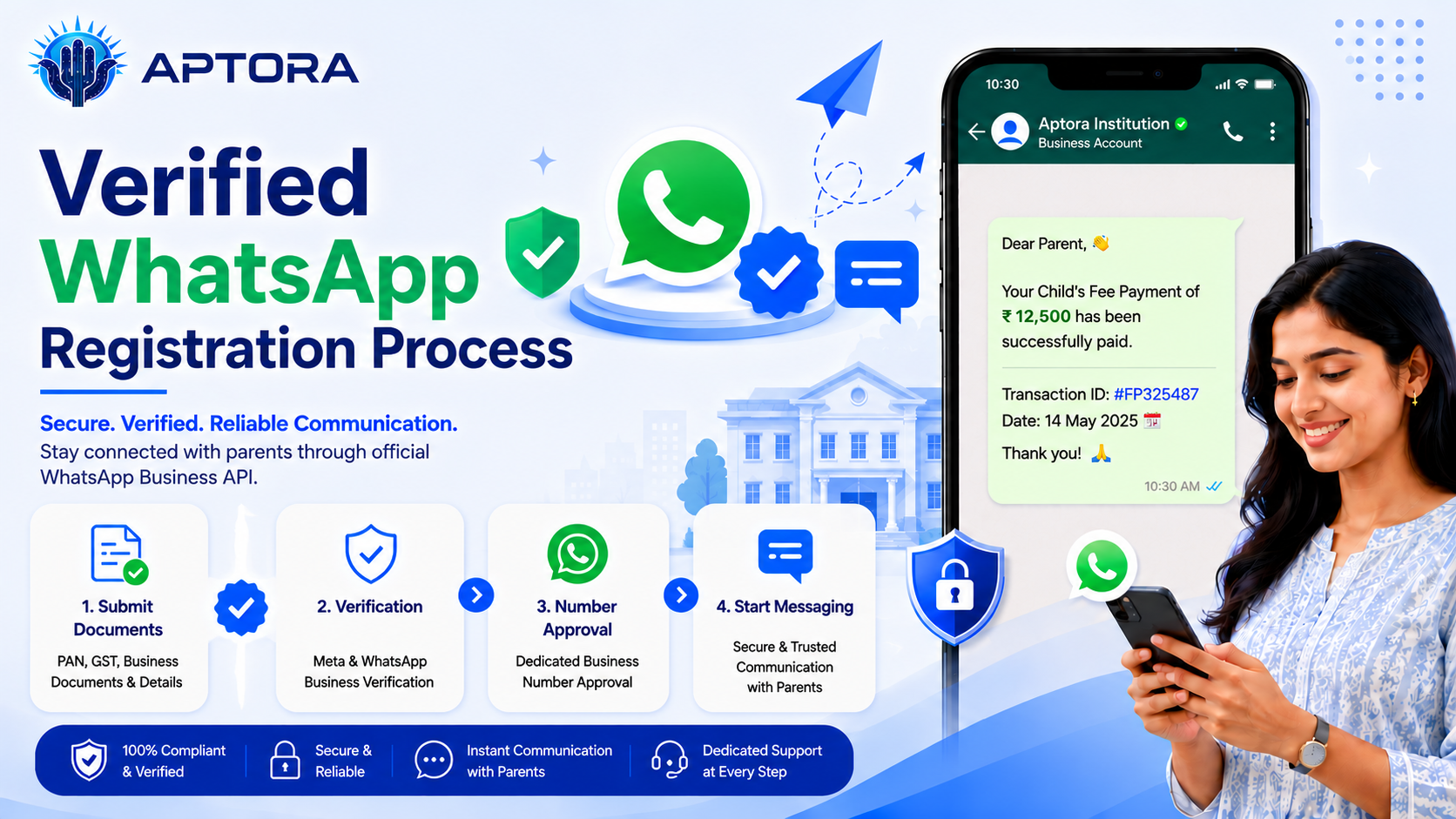
Verified WhatsApp registration is an important step for institutions and businesses that want to use WhatsApp for official communication, alerts, updates, reminders. To complete the process smoothly, the Facebook page, Meta account, documents, SIM card, and payment setup mus...
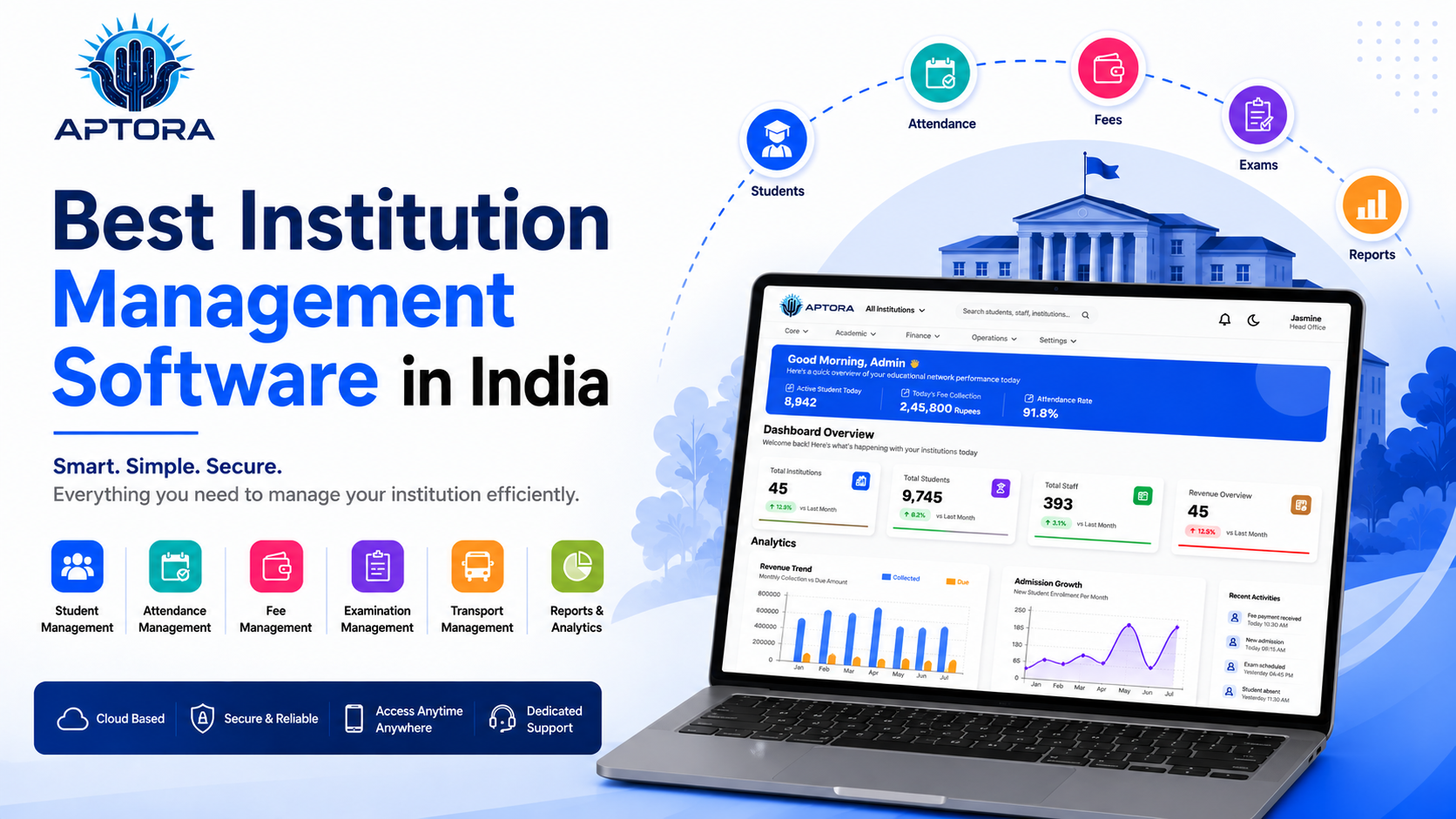
Choosing the best institution management software in India is an important decision for schools, colleges, coaching centers, and training institutes that want to manage daily operations in a smarter way. Today, educational institutions are not only focused on teaching. They...
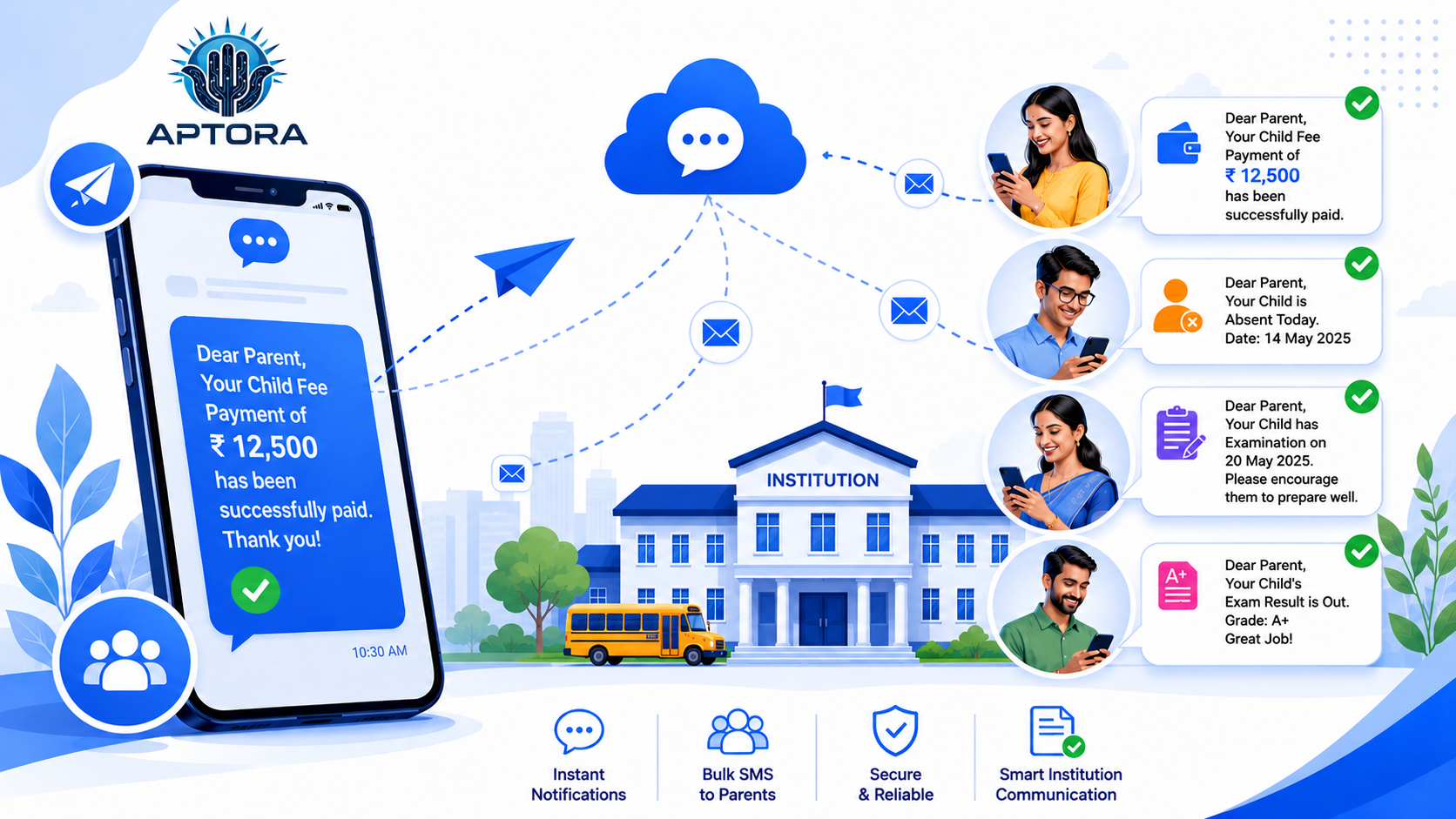
What is DLT Registration? DLT (Distributed Ledger Technology) registration is a mandatory process introduced by TRAI (Telecom Regulatory Authority of India) for businesses and organizations that want to send Bulk SMS. It helps prevent spam messages and ensures that SMS commu...
What is a Transfer Certificate (TC)?A Transfer Certificate is an official document issued by an institution when a student leaves the school or college. It confirms that the student has completed their studies up to a certain academic year and is eligible to join another ins...
Expense Entry Step by Step Guide The Expense Entry process in APTORA helps record and manage all institutional expenses easily and accurately, ensuring proper tracking of payments and maintaining clear financial records.📝 Note: Before proceeding, make sure that the institut...
In APTORA, administrators can easily assign roles to staff members in just a few clicks. This ensures that each staff member has the appropriate permissions and responsibilities, keeping workflows organized and the system secure.Step 1: Log in to the Dashboard Start by loggi...